Atmosphere is most convincing when every effect has a specific job. Problems begin when fog, haze, bloom, and light shafts are all pushed to communicate the same thing. The result is usually a flat grey image, weak silhouettes, and a scene that becomes difficult to tune.
Start with the visual question
Before touching a volume or material, write down what the scene needs. Are you trying to show depth between near and far objects? Make a hot surface feel unstable? Reveal the direction of a strong light source? These are different jobs, and they should not all be solved with one global fog value.
- Height fog is useful for separating vertical layers and grounding a scene.
- Atmospheric haze can soften distant contrast and communicate heat or suspended particles.
- God rays or sun shafts draw attention to the direction and interruption of light.
- Cloud shadows add large-scale movement without filling the whole frame with particles.
Build the stack one layer at a time
Disable every atmospheric effect and establish readable lighting first. Check the scene in colour and in grayscale. Your focal subject should still separate from the background before atmosphere is added.
Next, introduce the broadest depth cue—usually height fog or distance haze. Keep it subtle enough that important silhouettes survive. Then add one directional effect, such as sun shafts, only where geometry and light direction support it. Finish with local movement such as heat distortion or cloud-shadow motion.
Use a simple validation pass
- Toggle each effect independently. If removing one makes no visible difference, it may not be earning its rendering cost.
- Test the brightest and darkest gameplay locations, not just the hero camera.
- Check motion. Distortion and moving shadows that look good in a still frame can become distracting during play.
- Profile on the hardware you actually target.
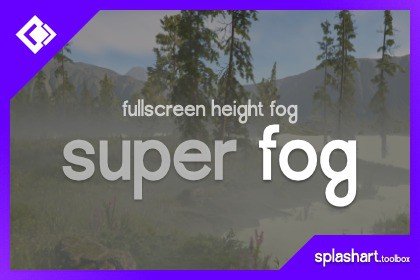
The Frankentools VFX range separates these jobs into focused URP assets: Super Fog, Super Haze, Super Rays, and Cloud Cast. Treat them as parts of a visual system, not as four sliders that all need to be maximised.
Product links in this article go to official Unity Asset Store pages. See the affiliate disclosure for current tracking information.